Why your IP address matters
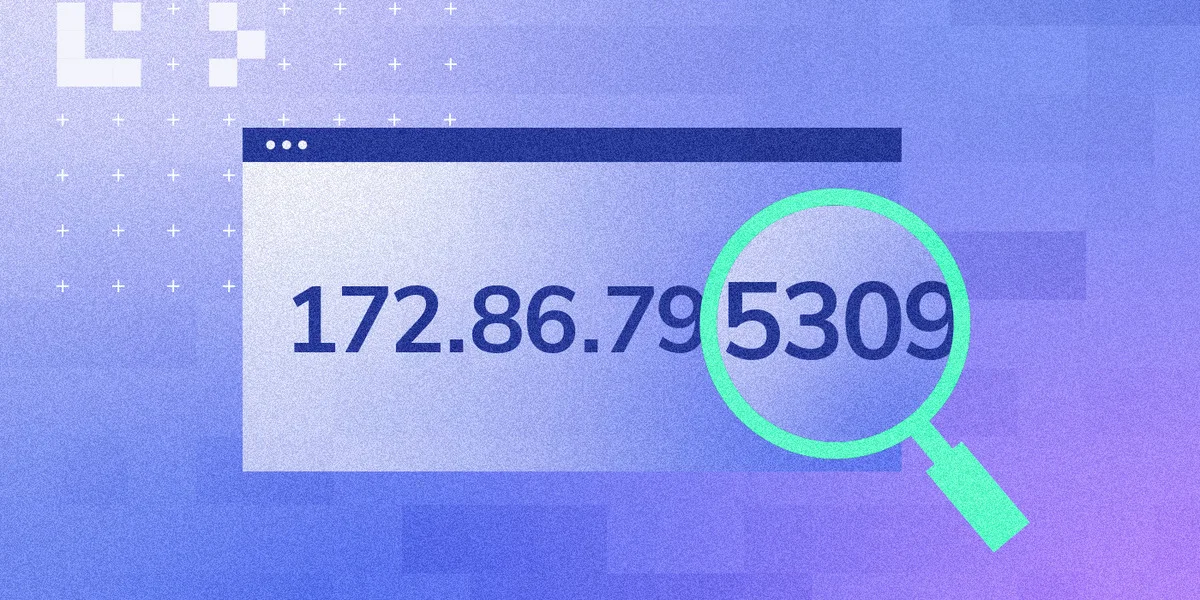
An IP address is a network identifier that helps route traffic to the right device. Knowing it can help with router configuration, connectivity troubleshooting, remote access setups, security checks (unknown devices on Wi-Fi), and confirming whether a VPN is actually changing your visible address.
Private vs public IP, IPv4 vs IPv6
A private (local) IP is assigned inside your home/office network (often by your router). A public IP is assigned by your ISP and is what websites and online services see.
You’ll usually see either IPv4 or IPv6 formats, with IPv6 being longer and using colons.
How to check your private IP on desktop
Windows (Settings): go to Settings → Network & Internet → Wi-Fi/Ethernet → your active connection and look for IPv4/IPv6.
Windows (Control Panel): open Network and Sharing Center → active connection → Details to view addressing info.
macOS: open Network settings, select the active interface (Wi-Fi/Ethernet), and read the IP details.
CLI (Windows): ipconfig is a quick way to display interface IPs.
How to check your private IP on mobile
Android: open Wi-Fi settings, tap the connected network, and view network details (IPv4/IPv6).
iPhone (iOS): go to Settings → Wi-Fi, tap the info icon next to your network, and find the IP field.
How to find your public IP in seconds
Open any browser and search “what is my IP”—your public IP is typically displayed right in the results. For deeper details (ISP, approximate location), use a dedicated IP-check service.
FAQ
Can my public IP change? Yes—many ISPs provide dynamic IPs that may change over time.
Does an IP reveal my exact address? Usually not; most services show approximate region/city at best.