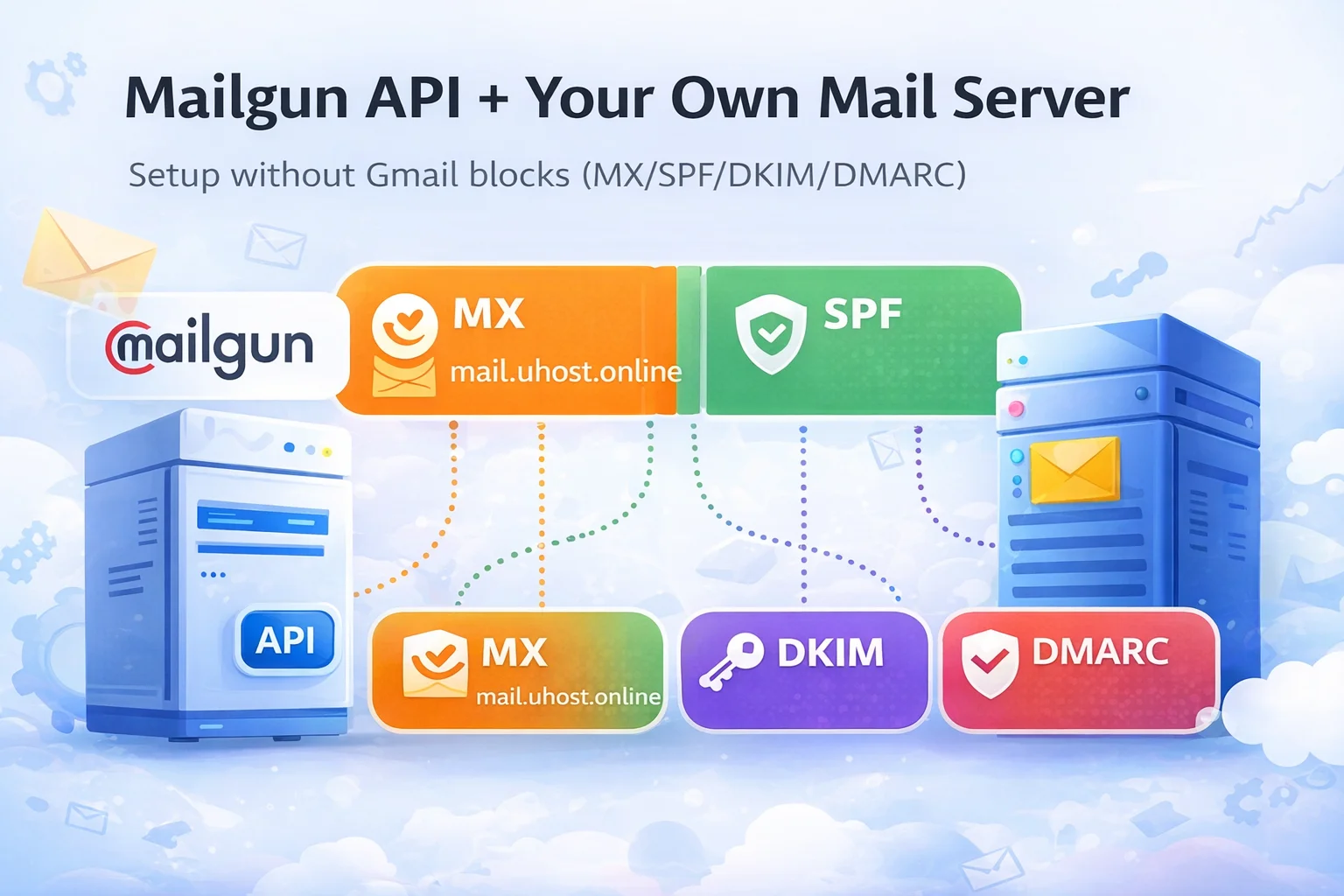
When you run a service under your own domain, you usually need two different email capabilities. First, reliable transactional delivery (signup, password resets, alerts). Second, real mailboxes for your team (support@, sales@) accessible via IMAP/SMTP. Mailgun is excellent for the first job (API sending and deliverability), but it is not designed to be your IMAP mailbox provider.

The most robust approach is: host inbound mail and mailboxes on your own server (FastPanel), and send application emails through Mailgun API. You can still keep the option to send directly from your server (Postfix), but Gmail will require authentication. If SPF/DKIM are missing or misaligned, you will hit errors like:
550-5.7.26 Your email has been blocked because the sender is unauthenticated
DKIM did not pass / SPF did not pass
That happens when your server sends from an IP not authorized in SPF and without DKIM signing.
Step 1: Make sure the FastPanel mail stack is enabled
FastPanel typically includes the mail stack, but verify:
-
Postfix (SMTP/MTA)
-
Dovecot (IMAP)
-
DKIM signing (OpenDKIM or FastPanel DKIM)
-
TLS certificate (Let’s Encrypt) for
mail.
For clients, prefer Submission 587 and IMAPS 993.
Step 2: DNS that avoids conflicts (the real key)
The rules of thumb:
-
You must have exactly one SPF record at the root.
-
You must have exactly one DMARC record at
_dmarc. -
You can have multiple DKIM selectors (that’s normal).
Inbound: A + MX to your server
-
A:
mail→95.216.1.58 -
MX:
@→mail.uhost.online.priority 10
If MX points to Mailgun (mxa/mxb), inbound mail will go to Mailgun, not to your server. For local mailboxes, MX must be your mail.domain.
SPF: authorize both Mailgun and your server IP
One TXT at @:
-
v=spf1 ip4:95.216.1.58 include:mailgun.org ~all
This is the direct fix for the “unauthenticated sender” Gmail block when sending from your own server.
DKIM: two separate setups
DKIM is not “just DNS”. The sender must actually sign the message.
-
Server DKIM: publish
s1._domainkeywith your public key and enable signing in FastPanel/OpenDKIM. -
Mailgun DKIM: add the DKIM records shown in the Mailgun domain settings (often two records) exactly as provided.
DMARC: one record, start gentle
-
_dmarc:v=DMARC1; p=none; adkim=s; aspf=s; pct=100; rua=mailto:dmarc@uhost.online; fo=1
Later, move to quarantine and then reject.
Step 3: PTR (Reverse DNS) at your provider
Set:
-
PTR for 95.216.1.58 →
mail.uhost.online
Without PTR, direct SMTP deliverability suffers even with SPF/DKIM.
Step 4: Create mailboxes in FastPanel
Add the mail domain, create support@, sales@, etc., then connect via IMAP/SMTP to mail.uhost.online.
Step 5: Send transactional emails via Mailgun API
Example:
Step 6: Verify using Gmail “Show original”
Look for SPF=PASS and DKIM=PASS. If SPF fails, you likely have duplicate SPF TXT records or the server IP is missing. If DKIM fails, the server/Mailgun is not signing or the selector/key is wrong.
End result: real mailboxes on your FastPanel server plus reliable transactional sending through Mailgun API — and Gmail stops blocking your messages.