How to create a website based on WordPress
Most CMS are distributed as archives: they need to be downloaded, unzipped and installed on the server. In this short guide, we will show how to create a site in FASTPANEL® using the example of installing the most popular CMS - WordPress.
You can create a site on WordPress in two ways:
-
CMS automatic installation
-
Manual CMS installation
Automatic installation
First prepare the panel - create a new site. To do this, launch the Site Creation Wizard by clicking the Create Site button on the right side of the screen.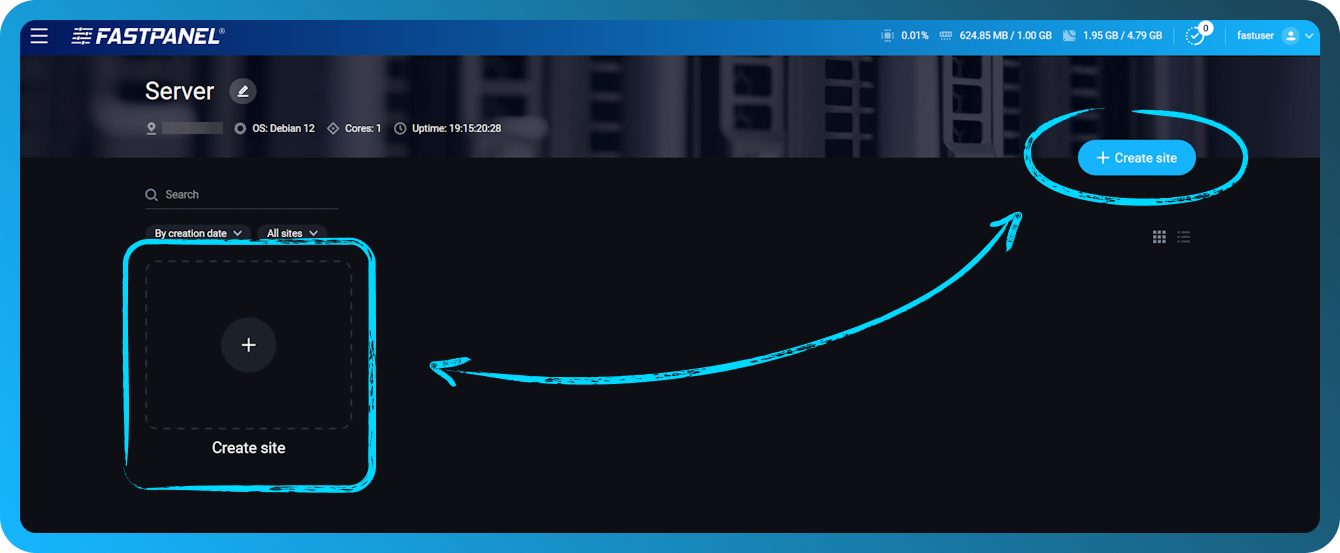
In the first step of the wizard, you can immediately install WordPress for the newly created site.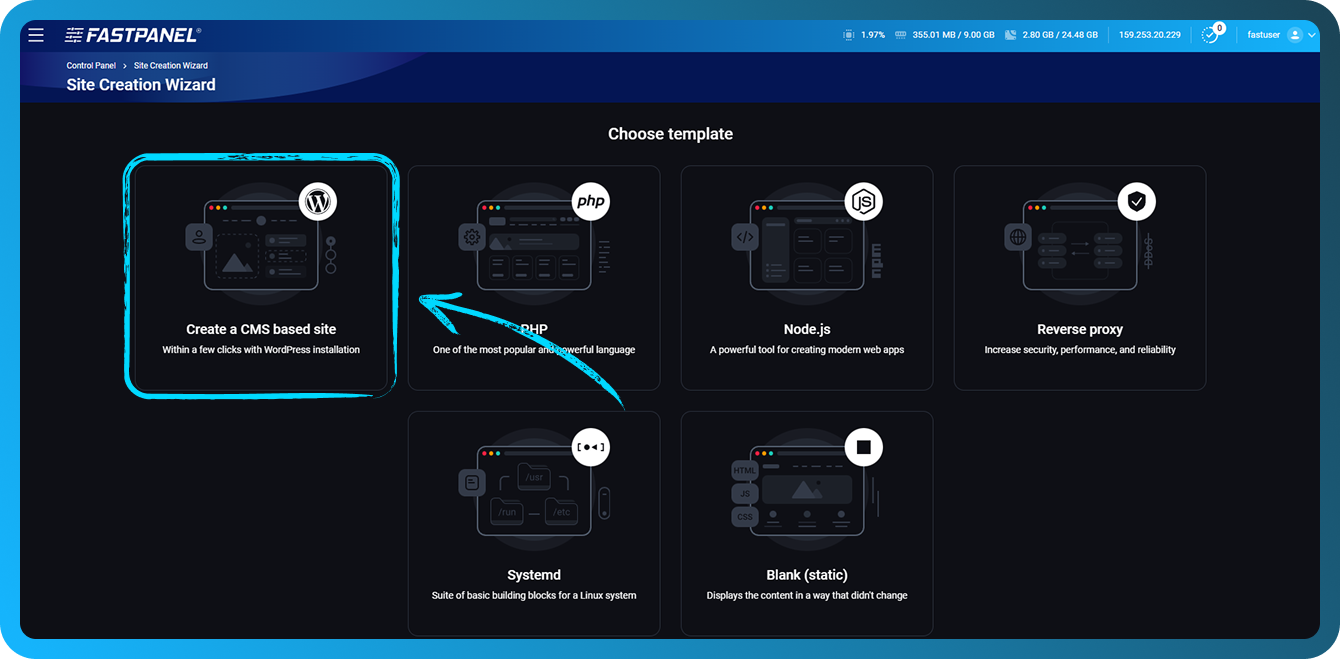
The wizard will then open and the whole process will take three steps:
-
Domain connection
-
CMS Settings
-
Site user credentials
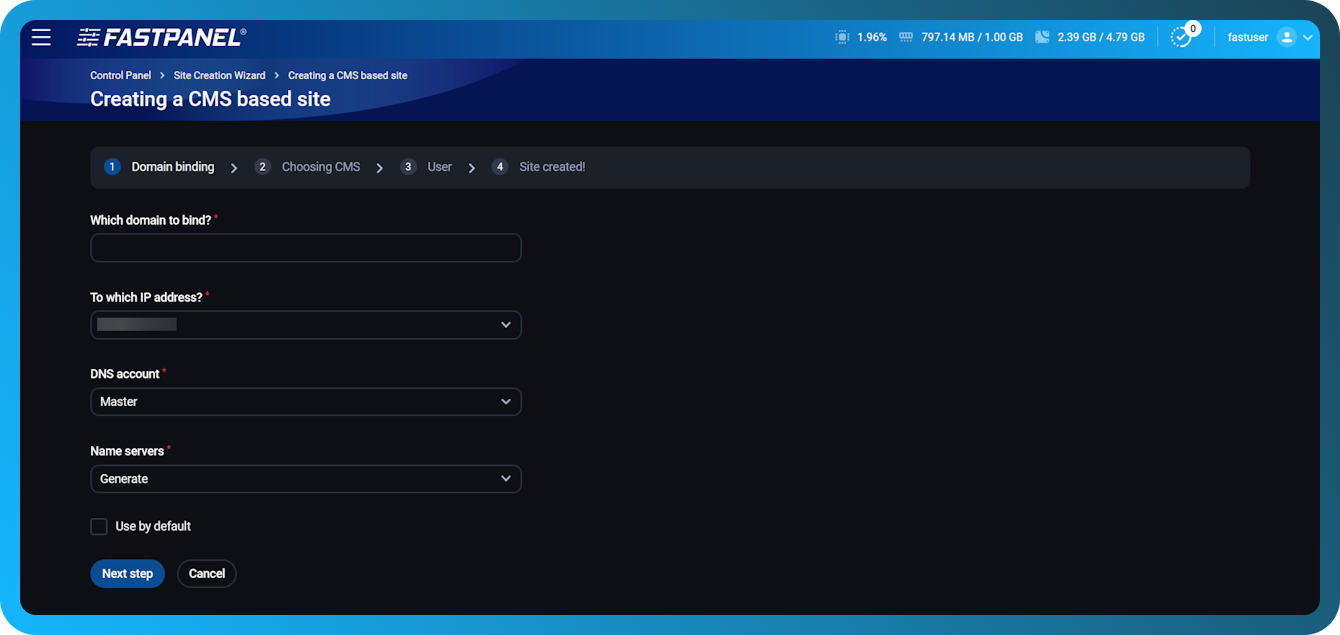
Enter the username and password for the future administrator - the panel will do the rest automatically.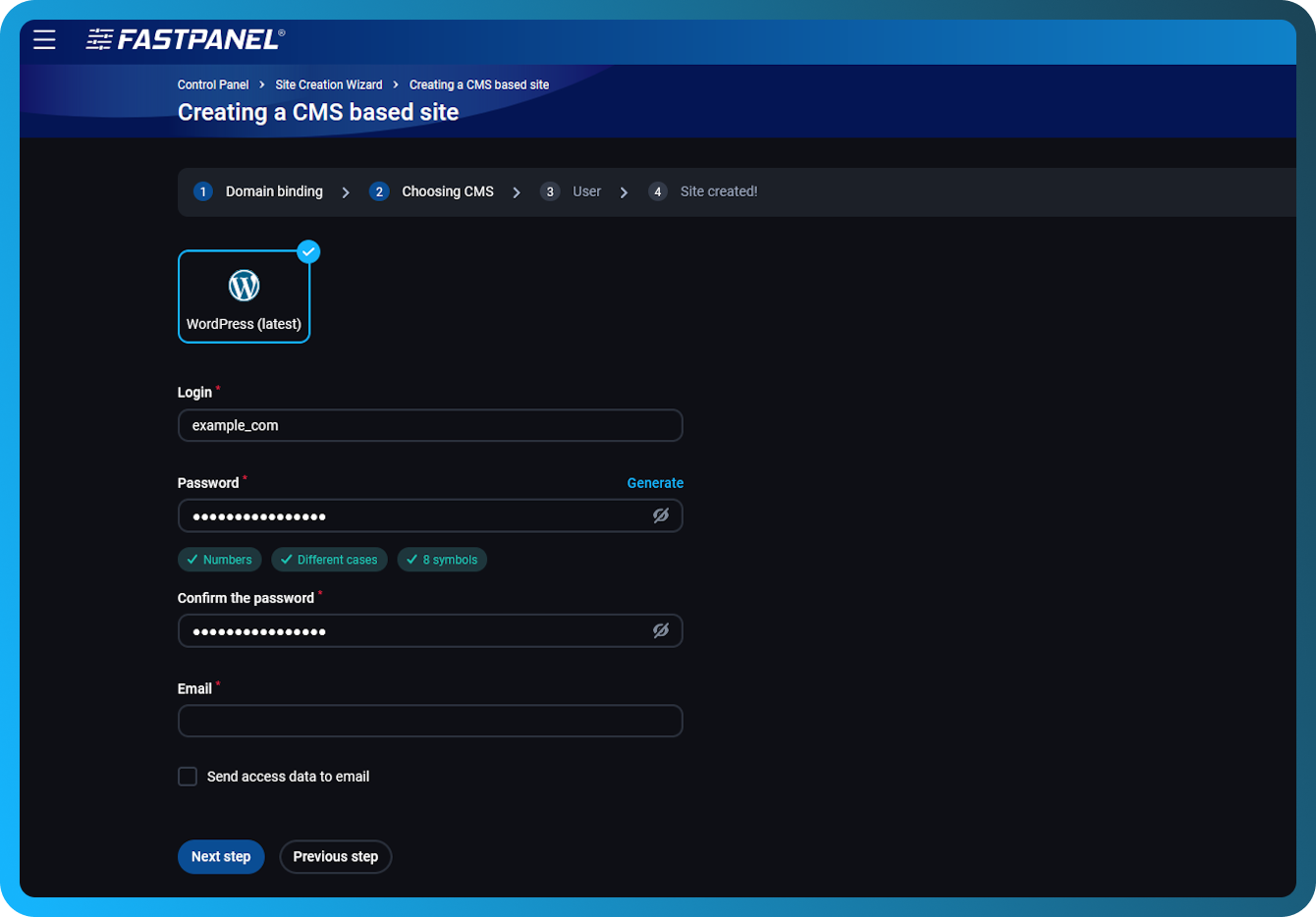
After that, you need to enter site user data. Important: These are not WordPress admin credentials.
These are user data on the server that owns the site.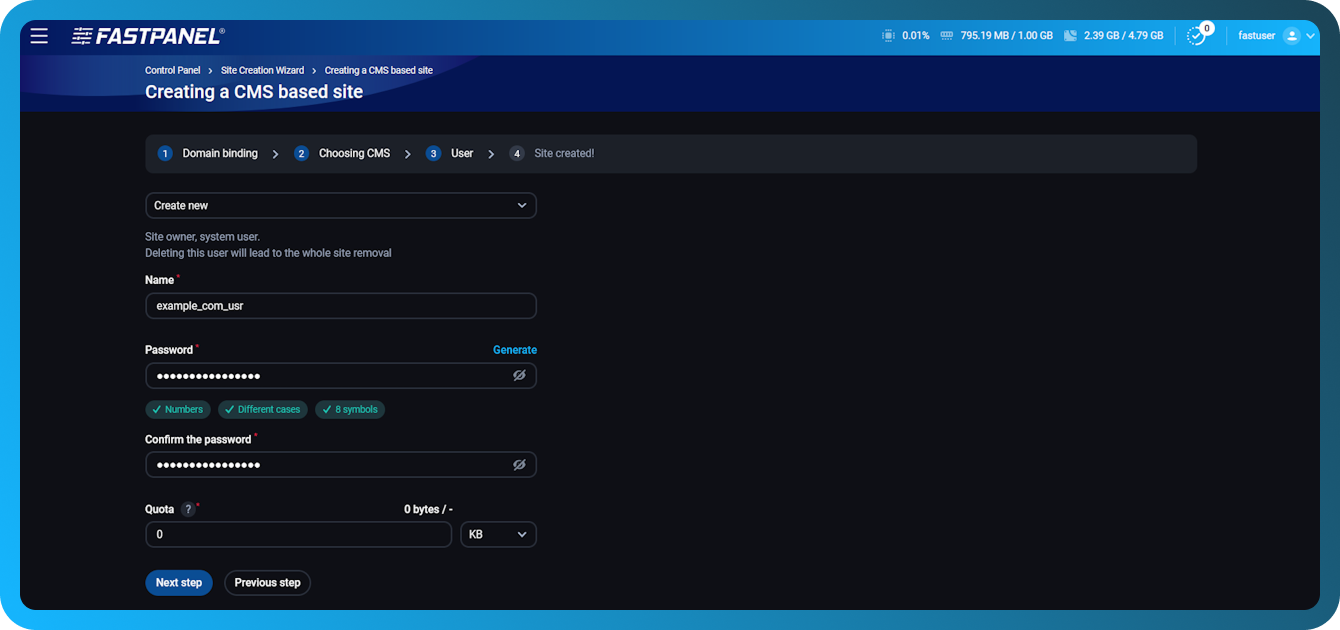
Follow the prompts of the wizard and finish creating the site.
Be sure to save your database and FTP account credentials in a safe place.
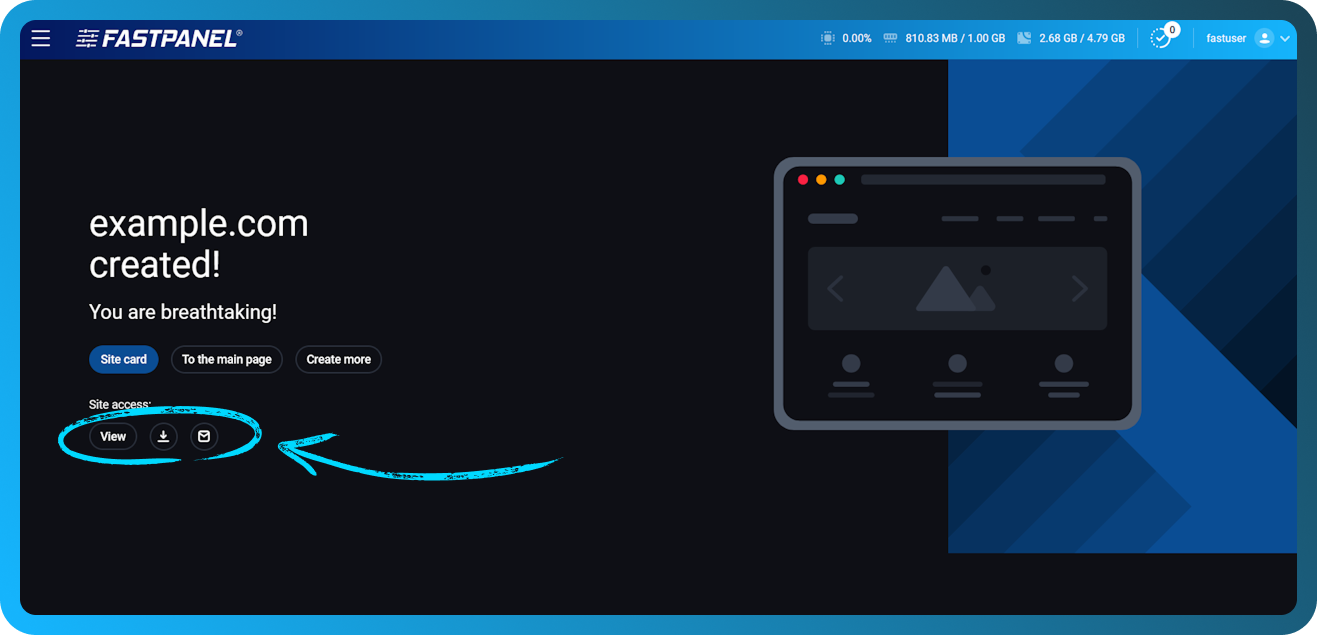
If necessary, you can "View", "Download" or "Send" access to the site. To continue, click Site Map.
Manual installation
First, create a new site in the panel in the same way (you can use the appropriate guide).
After creating the site, download the WordPress installation package and save the archive on your computer.
Next in the site card click "Files" to open the file manager.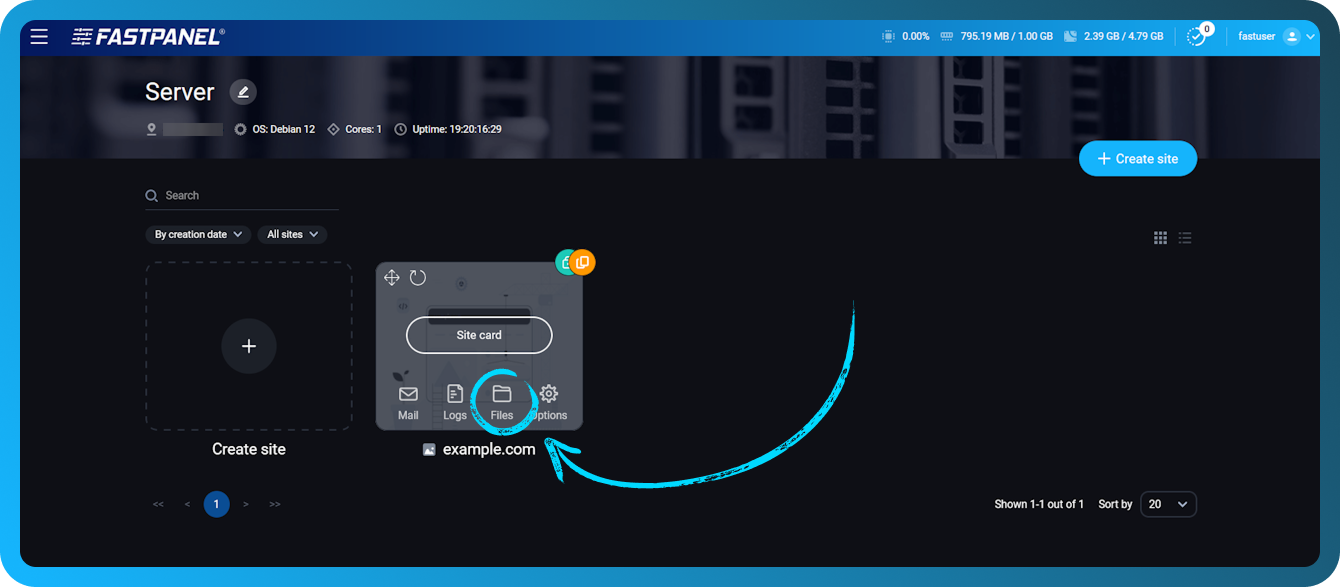
In the modal window, click "Upload" or simply drag the archive to the workspace.
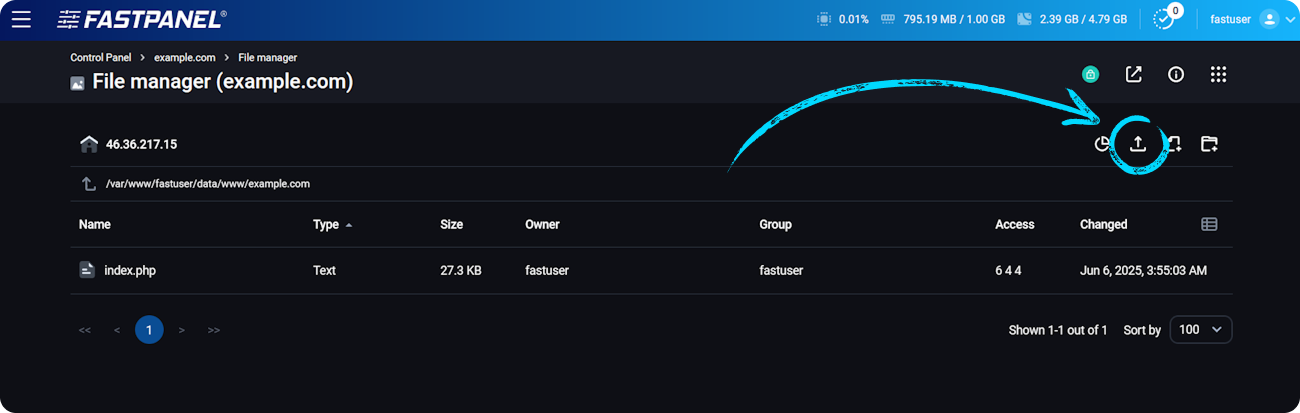
In the module window, select the downloaded WordPress archive.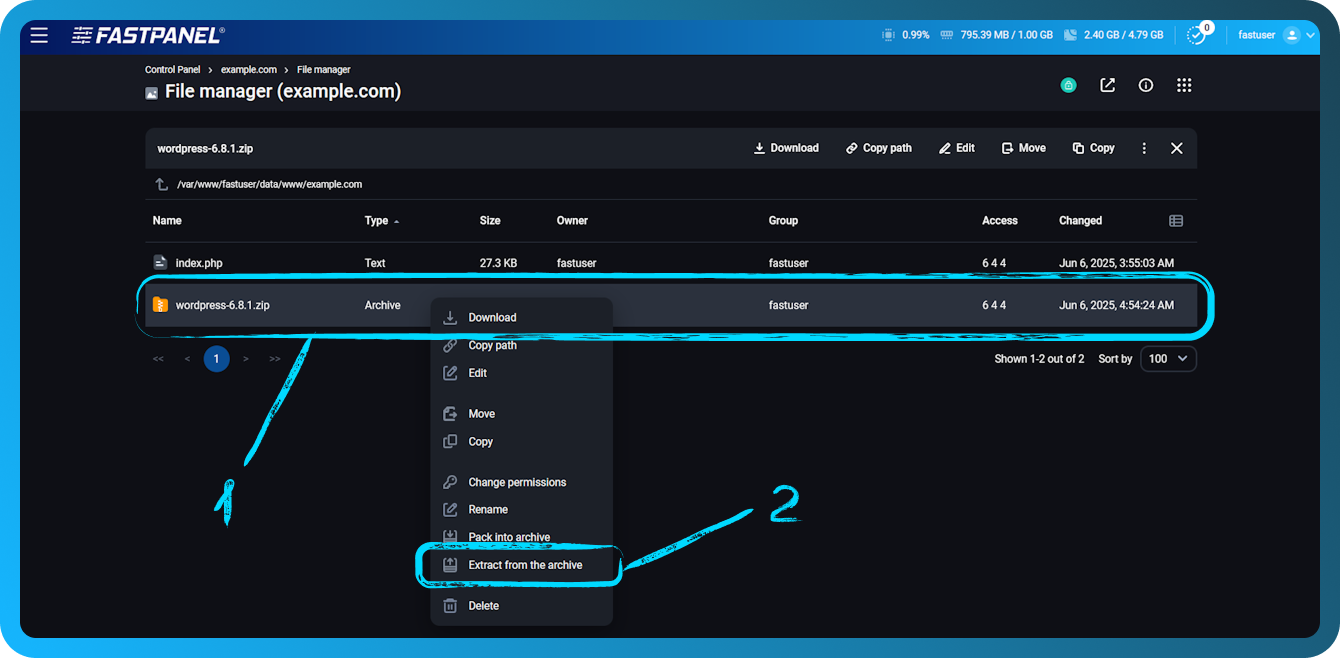
Right-click on the archive and select Extract from archive.
In order not to take up space, the archive can be deleted after unpacking.
Several actions left to complete. Enter the WordPress directory by double-clicking, highlight all files and folders and click Move.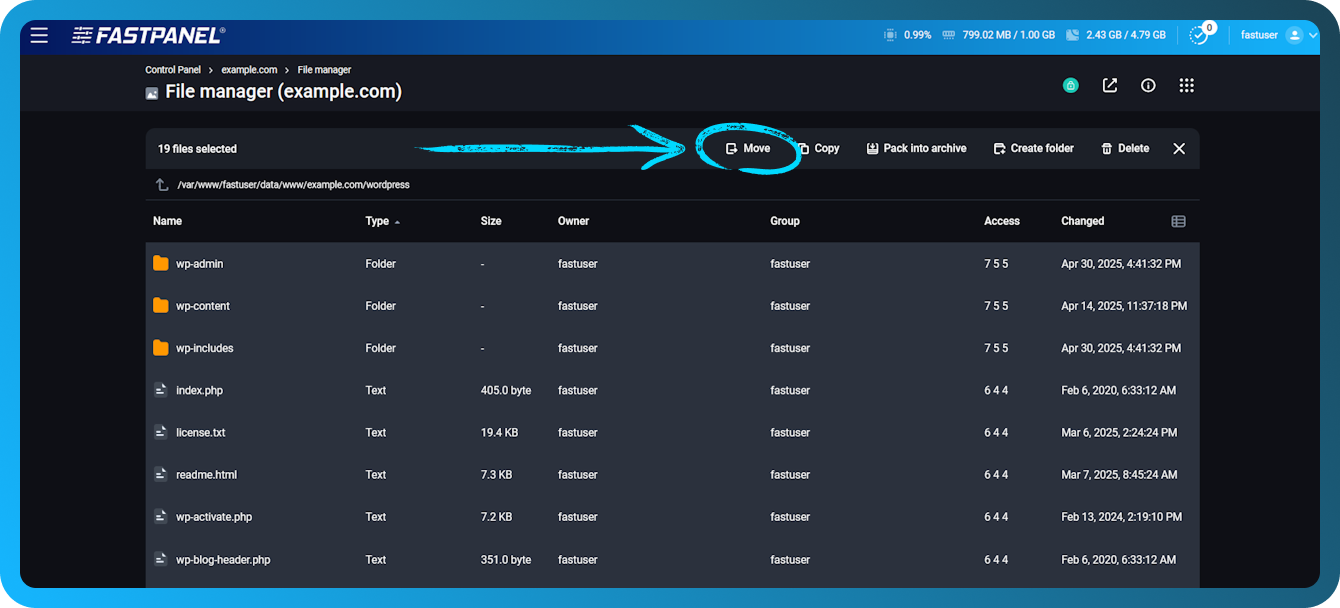
Go to the site root directory and click "Paste".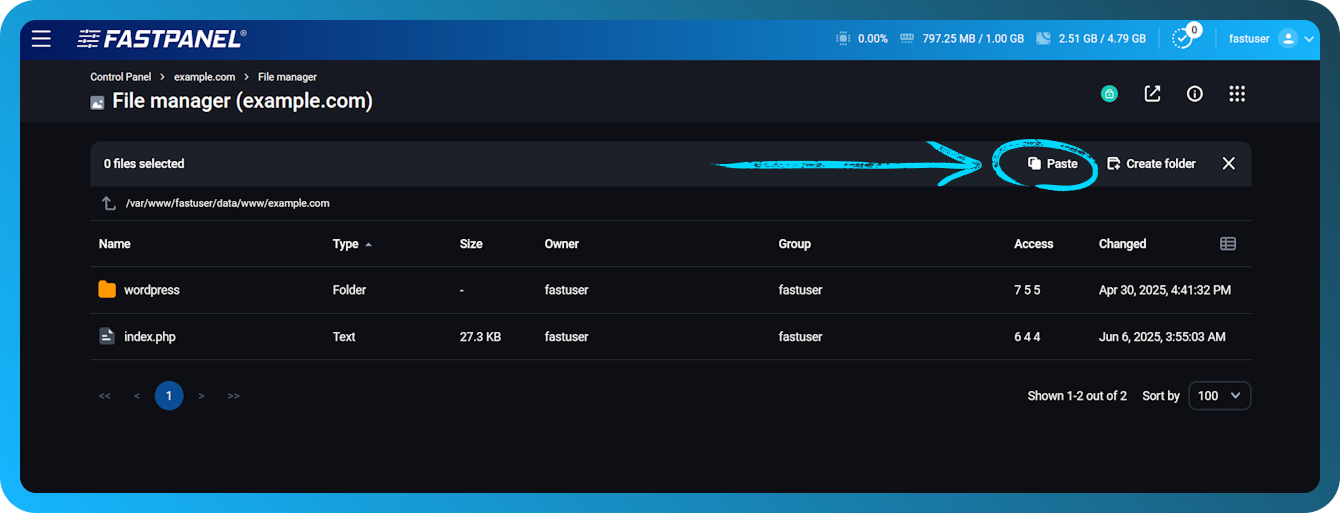
After that, open the site in a browser - the WordPress installation wizard will start.
Next, simply complete the installation by following the on-screen prompts.